What Is Canvas?
This part explains what makes Canvas different from a normal chat reply.
Canvas lets you see and edit specific portions of the chatbot's output in a side-by-side panel, making it easier to revise and refine content without losing context. It opens a separate window for writing and coding tasks alongside the main chat, though unlike Claude's Artifacts, Canvas doesn't let you actually run the code. ChatGPT automatically opens Canvas when it generates content longer than about 10 lines, or detects a scenario where a writing or coding interface would help — you can also directly ask it to open one. mit + 2
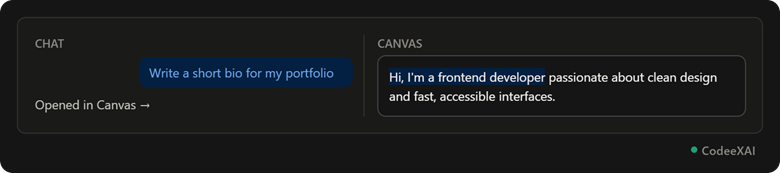 This picture shows the two-panel Canvas layout — regular chat on the left, and the editable document open on the right, with a highlighted section ready for editing.
Editing Text and Code Side-by-Side
This part shows exactly how to make a targeted edit without regenerating the whole response.
You can highlight a specific section of text or code and ask ChatGPT to focus on and revise just that part, or edit the output directly yourself. This solves a common frustration — previously, asking ChatGPT to tweak one function meant it would regenerate the entire code block; with Canvas, changes happen in place instead. Substackchicagobooth
Example: Highlight-and-Edit Steps
This example lists the exact steps shown in the picture above.
- Ask ChatGPT for something long enough to trigger Canvas — writing, an essay, or code.
- Once Canvas opens, highlight the specific line or paragraph you want changed.
- Type your instruction, like "make this more formal" or "fix this bug."
- Only that highlighted section updates — the rest of the document stays untouched.
Comparison Table: Writing Tools vs Coding Tools in Canvas
This table lines up the shortcut tools available for each type of task inside Canvas.
| Writing Tools | Coding Tools |
| Adjust length (shorter/longer) Substack | Code review with suggestions Substack |
| Change reading level, kindergarten to grad school Substack | Add comments automatically Substack |
| Add final polish for grammar and clarity Substack | Debug and fix errors in place |
| Add emojis and basic formatting Substack | Highlight-and-revise specific functions |
Use Cases: Writing and Coding Collaboratively
This part shows realistic tasks where Canvas saves real time over regular chat.
- Drafting and revising letters: Writing a birthday letter and then adjusting tone, removing unwanted punctuation, or tightening paragraphs — all without regenerating the full letter. chicagobooth
- Iterative document editing: Revising a draft repeatedly, like an email, without losing the surrounding context each time. mit
- Reviewing and fixing code: Getting suggestions on a specific function, then editing just that function in place instead of the whole file.
- Adjusting reading level: Turning a technical explanation into something a younger audience can understand, with one click.
Note: Canvas was initially limited to Plus and Team plans, but OpenAI has since expanded Canvas access to all users — check your account to confirm current availability. mit
Conclusion
Canvas turns ChatGPT from a single-reply chat into a real editing workspace — highlight any part of your writing or code, and only that part changes, instead of regenerating everything from scratch. It's especially useful for iterative work like letters, essays, or debugging a specific function, where you need small, targeted revisions rather than a brand-new response each time.