
ChatGPT can generate images directly from a text description, and refine them through follow-up chat — no separate app needed.
How to Generate Images
This part shows exactly where to type your request and how the image appears.
Just describe what you want in plain text, right in the chat box — no special mode or icon needs to be activated first.
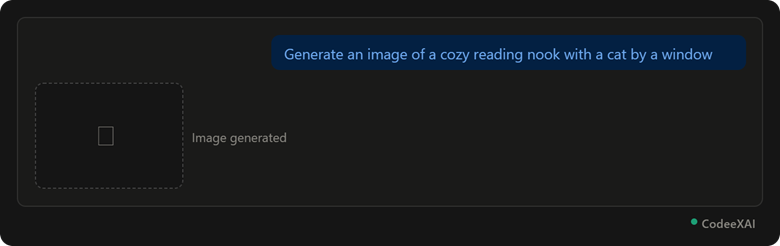 This picture shows a plain text description turning directly into a generated image, right inside the chat.
Example: Generating Your First Image
This example lists the steps shown above.
- Type a description of the image you want, directly in the message box.
- Send the message — no need to switch modes or tools first.
- Wait a few seconds while the image generates.
- The image appears inline in the chat, ready to view or download.
Writing Effective Image Prompts
This part shows how prompt detail directly changes image quality and accuracy.
A vague prompt gives a generic image. A specific prompt — naming subject, style, setting, and mood — gives a far more accurate result.
Comparison Table: Vague vs Specific Image Prompts
This table shows how added detail changes what you actually get.
| Vague Prompt | Specific Prompt |
| "A dog" | "A golden retriever puppy sitting in autumn leaves, soft lighting, realistic style" |
| "A city" | "A futuristic city skyline at sunset, neon lights, digital art style" |
| "A logo" | "A minimalist logo for a coffee shop, green and brown tones, flat design" |
Tip: Naming an art style (watercolor, 3D render, flat design) and a mood (bright, moody, calm) gives you much more predictable, usable results than describing the subject alone.
Editing and Regenerating Images
This part shows how to refine an image you already got, instead of starting over.
You can ask ChatGPT to adjust a specific part of the image, change its style, or generate a new variation — all through a normal follow-up message.
Example follow-up prompts:
- "Make the background darker"
- "Change the cat to a golden retriever instead"
- "Give me another version with a different color scheme"
- "Make it look more like a watercolor painting"
Limitations and Usage Rights
This part covers what you should know before generating or using an image commercially.
- Text in images is often inaccurate: Generated text, like signs or labels within an image, frequently comes out misspelled or garbled.
- Real people can't be generated accurately: ChatGPT avoids generating realistic images of real, named public figures.
- Consistency across images isn't guaranteed: Asking for "the same character" in a new scene often produces a slightly different-looking version.
- Usage rights depend on your plan and local law: Check OpenAI's current usage policy before using generated images commercially, since terms can change and vary by region.
Conclusion
Generating images in ChatGPT is as simple as describing what you want in the chat box, with more specific prompts — naming style, mood, and setting — producing far better results. Follow-up messages let you refine or regenerate an image without starting over, though text accuracy and character consistency remain real limitations worth checking before relying on generated images for anything important.