

ChatGPT's interface is made up of a few core areas — the chat window, sidebar, settings menu, and model selector — each serving a distinct purpose. Understanding these parts helps you navigate ChatGPT confidently from your very first session. In this guide, you will learn the chat window layout, the sidebar and chat history, the settings menu, the model selector, and the difference between starting a new chat and continuing an old one.
Chat Window Layout
This part explains the main area where you actually type and read ChatGPT's responses.
The chat window is the central part of the screen where your conversation with ChatGPT appears. It includes a message input box at the bottom, and your conversation history displayed above it, with your messages and ChatGPT's replies shown in an alternating pattern.
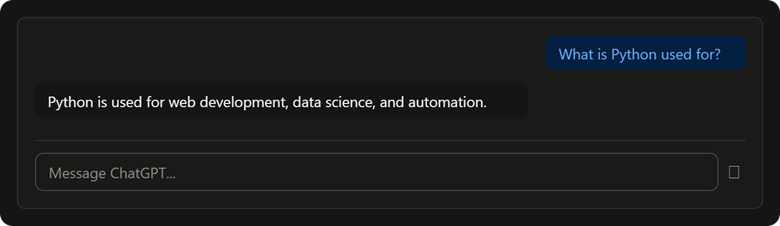
This picture shows the chat window's basic structure — your messages on the right, ChatGPT's replies on the left, and the input box at the bottom.
Sidebar and Chat History
This part explains the panel on the left side of the screen that stores all your past conversations.
The sidebar sits on the left side of the screen and lists your chat history — every previous conversation you've had, organized by date. Clicking any item in this list reopens that full conversation exactly where you left off.
Example: If you asked ChatGPT to help plan a trip last week, you can find that exact conversation in the sidebar under a recent date, instead of starting the whole planning process over.
Settings Menu Overview
This part explains where you control your account, appearance, and data preferences.
The settings menu is usually accessed through your profile icon, and contains options for managing your account, subscription plan, appearance (light or dark mode), and data controls like chat history and training preferences.
Common sections inside settings include:
- General: Theme (light/dark), language
- Data controls: Chat history toggle, and whether your data is used to improve the model
- Subscription: Upgrade or manage your current plan
- Personalization: Custom instructions for how ChatGPT should respond to you
Model Selector
This part explains the dropdown that lets you pick which AI model answers your messages.
The model selector is usually found at the top of the chat window, and lets you choose which underlying model — like a faster, lighter model or a more advanced reasoning model — will respond to your messages.

This picture shows a typical model selector dropdown, letting you switch between a standard model, a locked advanced model, and a faster lightweight model.
Example: If you're asking a quick, casual question, a faster model works fine. If you're solving a complex coding problem, switching to a more advanced reasoning model in the selector can give more accurate results.
New Chat vs Continuing a Chat
This part explains when to start fresh versus when to keep going in an existing conversation.
Starting a new chat clears the context — ChatGPT will not remember anything from your previous conversations unless you bring it up again. Continuing a chat keeps all earlier messages in context, so ChatGPT can refer back to what was already discussed.
Comparison Table: New Chat vs Continuing a Chat
| Situation | New Chat | Continuing a Chat |
| Starting a different topic | Best choice | Can confuse the context |
| Following up on the same task | Not needed | Best choice |
| Context from earlier messages | Not available | Fully available |
| Long, unrelated conversation history | Keeps things clean | Can slow down or clutter responses |
Example: If you were discussing a Python coding problem and now want to ask about a completely unrelated topic, like meal planning, starting a new chat keeps both conversations clear and easy to find later in your chat history.
Conclusion
ChatGPT's interface is built around a few core areas — the chat window for conversation, the sidebar for chat history, the settings menu for account and data control, and the model selector for choosing which AI model responds. Knowing when to start a new chat versus continue an existing one keeps your conversations organized and your context accurate. The key takeaway is that a few minutes spent understanding this layout makes every future ChatGPT session faster and less confusing.