

ChatGPT can read and analyze files you upload directly in the chat — no plugins or extensions needed. Here's what's supported and exactly how to use each type, step by step.
Supported File Types
This part covers the range of files ChatGPT accepts and their size limits, before diving into each type individually.
Supported formats include PDF, Word (DOC/DOCX), TXT, spreadsheets like CSV or XLSX, images (PNG, JPG), code files, and ZIP archives. Each file can be up to 512 MB in size, though practical limits vary by type.
Comparison Table: File Type Limits
This table breaks down size and processing limits by file category, so you know what to expect before uploading.
| File Type | Limit | Processing |
| PDF / Word / TXT | ~4,000 pages | Text extraction |
| Images (PNG, JPG) | 20MB | Vision analysis |
| Excel / CSV | ~50MB practical limit | Python-based data analysis |
| Any file type | 512MB hard limit | Varies by type |
Uploading and Analyzing PDFs
This part walks through the exact steps to upload a PDF and get a real answer from it.
You can upload a PDF report and ask ChatGPT to summarize it — it reads the actual text inside the file to answer your question directly.
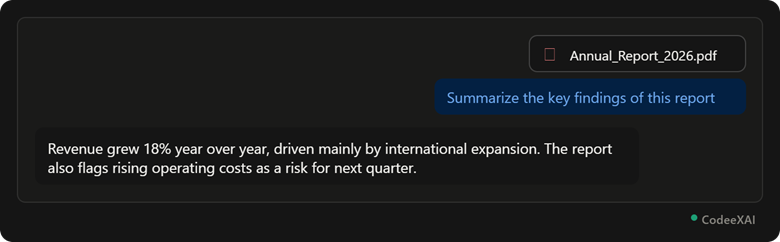
This picture shows a PDF attached to the chat, with a summary request, and ChatGPT's answer pulled directly from the document's actual content.
Example: PDF Upload Steps
This example lists the exact steps shown in the picture above, so you can repeat it with your own file.
- Click the paperclip icon in the chat box.
- Select your PDF file from your device.
- Wait for the file to finish uploading — it appears as a small card above your message.
- Type your question, like "Summarize the key findings" or "List the main points."
Note: ChatGPT reads the text inside the PDF — a scanned PDF that's just a photo of a page may need OCR processing first, since there's no real text to extract.
Uploading and Reading Images
This part shows how ChatGPT looks at and describes an image you upload.
You can upload a photo, screenshot, or chart, and ChatGPT's vision capability lets it describe what's in the image or read text and data from it.
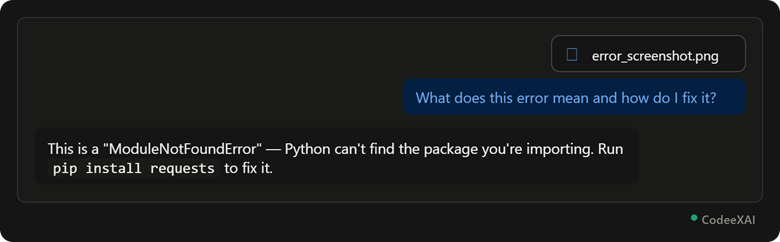
This picture shows a screenshot uploaded with a question, and ChatGPT reading the error text inside the image to explain the fix.
Other common image use cases:
- Uploading handwritten notes and asking ChatGPT to type them out
- Uploading a chart image and asking it to explain the trend
- Uploading a photo of food and asking for a recipe guess
Working with Excel and CSV Files
This part shows how ChatGPT reads spreadsheet data and can even run calculations on it.
You can upload a CSV or Excel file and ask ChatGPT to calculate values or find patterns — it often writes and runs code behind the scenes to get an exact answer, not a guess.
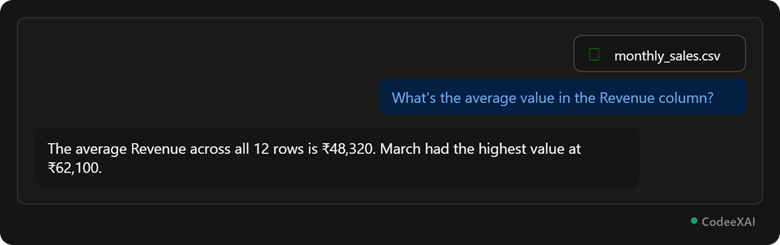
This picture shows a CSV file uploaded with a specific data question, and ChatGPT returning an exact calculated answer instead of a rough guess.
Example: Spreadsheet Upload Steps
This example lists the steps to get accurate results from your own spreadsheet.
- Click the paperclip icon and select your .xlsx or .csv file.
- Wait for it to upload.
- Ask a specific question, like "What's the average in column X?" or "Chart monthly totals."
- For big or complex files, ask one question at a time instead of everything at once — this gets more accurate results.
Conclusion
ChatGPT handles PDFs, images, and spreadsheets differently — extracting text from documents, using vision to read images, and running real calculations on spreadsheet data. In every case, the process is the same: click the paperclip, attach your file, and ask a clear, specific question. Starting with one direct question per file, as shown in each example above, gets you the most accurate and useful answers.