

How to Download Python from Python.org?
The safest and most up-to-date way to get Python is the official python.org website, not third-party sites or app store mirrors that may lag behind on security updates.
Steps to Download the Python Installer
- Open your web browser and visit the official Python website: https://www.python.org/.
- Hover your mouse over the Downloads menu in the navigation bar.
- Click Windows from the drop-down menu if you are using Windows.
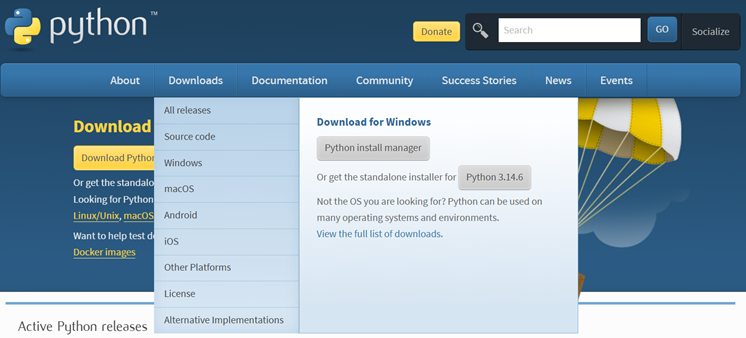
- Under the Download for Windows section, click the latest Python 3.x.x installer (for example, Python 3.14.6 as shown in the image).
- Your browser will begin downloading the Python Installer (.exe) file.
- After the download is complete, navigate to your Downloads folder.
- Double-click the downloaded installer to begin the Python installation process.
Note:
The Python version shown on the website may differ from the one in this tutorial because the official Python website always provides the latest stable release.
Always download Python from the official site when possible — this applies whether you're installing Python on Windows, macOS, or Linux.
How to Install Python on Windows?
On Windows, you install Python using the .exe installer from python.org and must manually enable the PATH option.
- Download the Windows installer (64-bit) from python.org/downloads.
- Run the downloaded .exe file.
On the first screen, check the box "Add python.exe to PATH" at the bottom — this step is required so you can run python from any terminal.
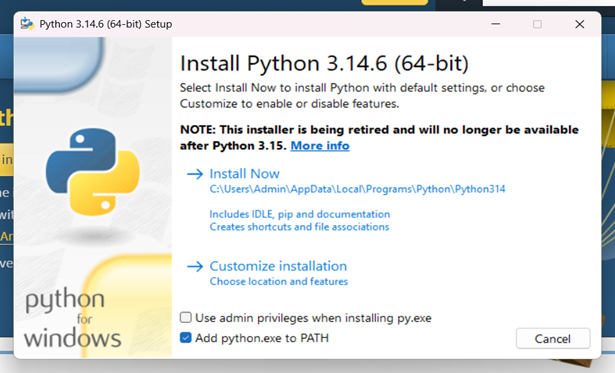
- Click "Install Now" for the default setup, or "Customize installation" to choose the install location and optional features (pip, IDLE, documentation).
- Wait for the installer to finish, then click Close.
- Open Command Prompt and confirm it worked (see the verification section below).
How to Install Python on macOS?
macOS ships with limited or no default Python 3, so you install the latest version using the official .pkg installer or Homebrew.
Option 1: Official installer
- Download the macOS 64-bit installer from python.org/downloads.
- Open the .pkg file and follow the setup wizard (Introduction → License → Install Location → Install).
- Enter your Mac password when prompted, then click Close once finished.
Option 2: Homebrew (recommended for developers)
brew install pythonThis installs the latest stable Python 3 and keeps it easy to upgrade later with brew upgrade python.
On macOS, Python is usually run as python3 in Terminal, since python may still point to an old system version or nothing at all.
How to Install Python on Linux?
Most Linux distributions include Python 3 by default, but you can install or update it with your distro's package manager.
Ubuntu/Debian:
sudo apt update
sudo apt install python3 python3-pip
Fedora:
sudo dnf install python3 python3-pipArch Linux:
sudo pacman -S python python-pipAfter installation, python3 and pip3 commands should be available immediately — no PATH configuration is typically needed on Linux, since package managers install directly into system paths.
How to Verify Python Installation?
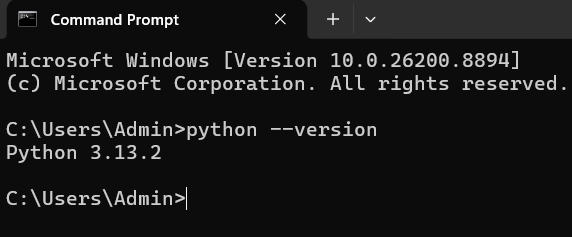
To verify your python installation, open a terminal and run a version-check command — a correct output confirms Python is installed and accessible.
Windows / macOS / Linux:
python --versionOutput:
Note:
The Python version shown in this tutorial may differ depending on the latest version available on the official Python website.
How to Run Your First Python Program
Once verified, test the installation further by running actual Python code.
- Open a terminal or command prompt.
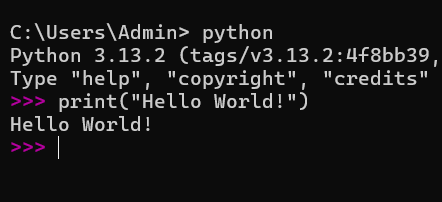
- Type python (or python3) and press Enter to open the interactive shell.
Type the following and press Enter:
- Type exit() to leave the shell.